 Are you tired of the hassle of creating and running reports to see the information you want for different groups of people like small groups, volunteers, and mission teams? Or tracking event registrations in one software, and payments in another one? If so, we feel your pain and offer you a better way to manage people and processes.
In Churchteams, groups are the architectural element that organizes every group, class, committee, serving team, event, mission project, registration form, assimilation step, and any other "bucket" that you need to bring people together. This is one of our distinctives. It's a simple idea with significant implications.
Once you've created a group, customize the layout to view and summarize any combination of people attributes and registration fields. Here is an example for a Missions Trip that includes people attributes (blue), registration fields (orange), payment details and reminder (green), and the summary row (red).
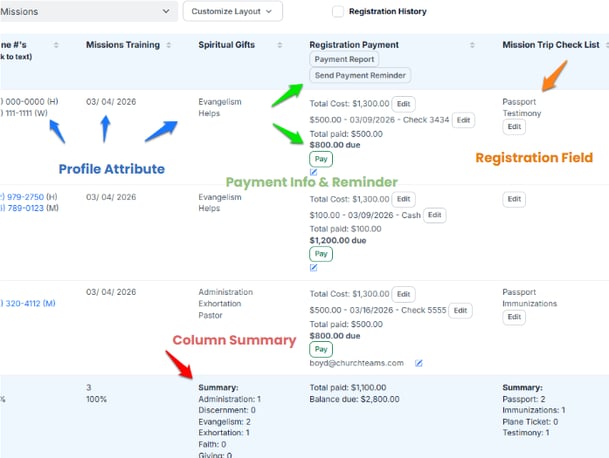
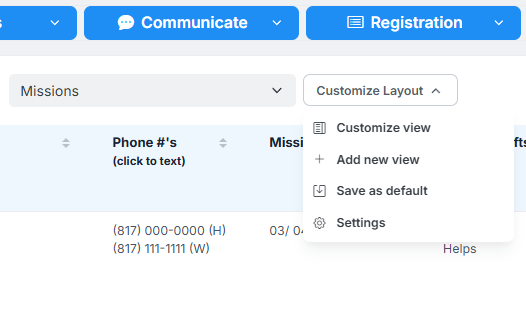
To select the fields and organize them like you want, click the Customize Layout dropdown to: (1) Customize the view (columns, access, sort order), (2) Add a new view (name, create, save), (3) Save as default (for this group), and (4) go to the Group View Settings page.
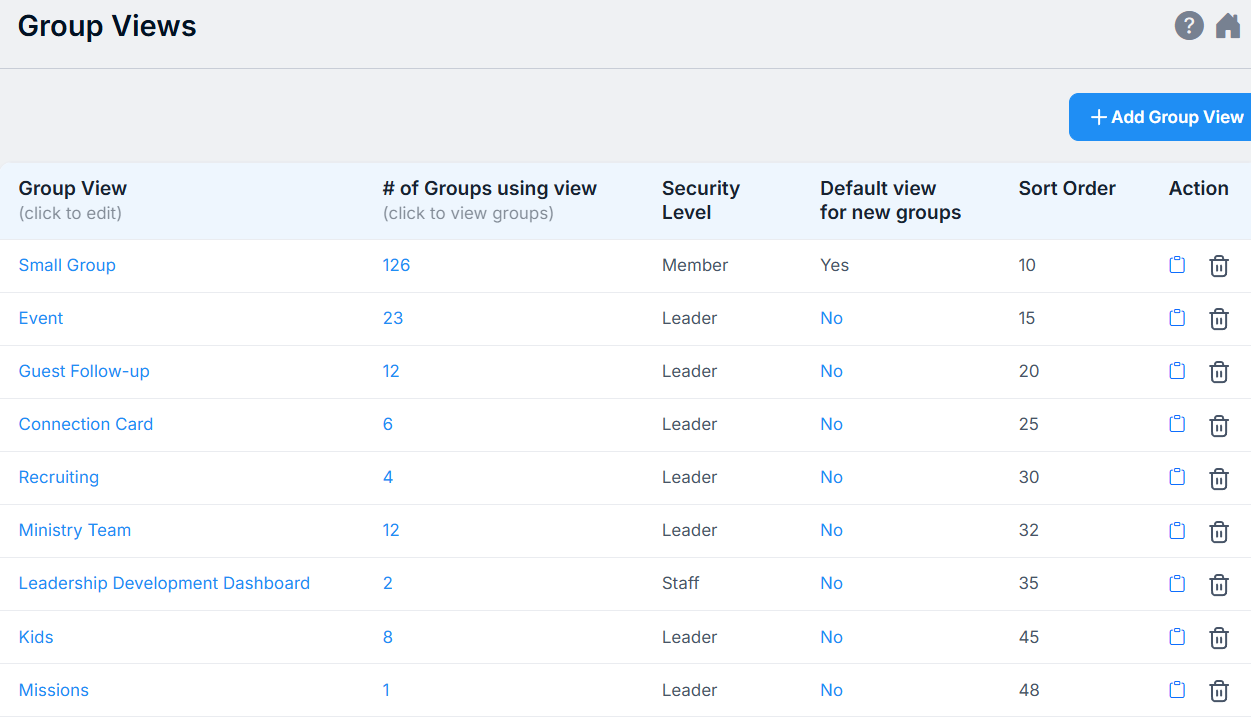
The Group View Settings page shows you how many groups are using each view, which levels of access can see it, the default view (used when groups are created), what order they show up in the list, and options to copy or delete that view.
Group views are your dashboard for seeing the information you want about any collection of people. To move people along in any process, select one person, a subset of people, or the whole group and use the Actions button to manage their engagement.
This means you can add, copy, remove, or transfer people between groups (buckets). You can also update people attributes like Date Joined the Church and add open ended Notes with a follow up task assignment. Use other Action options to communicate by email or text, or to automate a series of follow up actions through a workflow. Finally, you have the option to run any kind of report.
If you are a client and want some help customizing (or strategizing) a ministry process using Group Views, email support@churchteams.com to set up a free consultation. If you aren't a client, join us in Meet The Software to learn more about the Churchteams approach to people and process management.