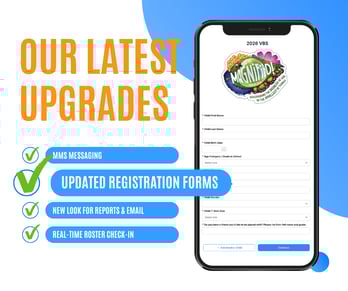
 The look and feel of Churchteams registration forms was significantly upgraded with the User-Interface (UI) released a few nights ago. This update provides a fresh new look for your registration forms.
The registration (or form) creation process remains the same: create a group, then go to Registration > Settings. The Registration Settings page looks the same (for now), but the link and code that you copy and paste on your website (or elsewhere) result in the new look and feel.
Follow the tips below to update your existing forms to the new look.
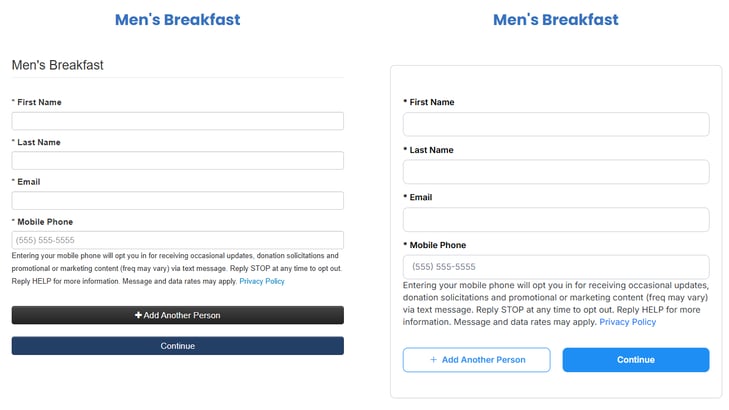
In these examples, you will see that the new version on the right has lighter visual weight, improved field spacing, and clearer action buttons, making your forms feel friendlier to registrants.
Important: There are two simple things you need to do to take advantage of this new release.
- New UI Beta version only. You must be logged in using the New UI Beta. This upgrade is not available in the classic version of the software. You can upgrade by clicking the Opt In button on the Dashboard page when you log in. If you don't see that button, you are already in the new UI.
- Current links don't automatically change. Existing links and embed code on your website or social media assets will not automatically switch to the new UI. Simply go to your existing group or event and copy the updated links or code from Registration Settings. Then replace the old links or code with the newly copied version. You do not need to create new events from scratch; just copy the updated links.
One other minor change in the Registration Settings was the removal of the horizontal field layout option.
This release is a significant upgrade to the look of Churchteams registrations. It will make the sign-up process feel fresh and modern for your guests and members.